

Use the console
The console inspects state and administers the service. It does not deploy anything: only the Pulumi CLI changes cloud resources, and nothing in these screens can start an update.
The Manage group in the sidebar is visible to site administrators. Organization owners see a narrower version of it, covering members and service tokens for the organizations they own.
See authentication and access for the model behind these screens: roles, grants, and how authentication works.
Organizations and members
Section titled “Organizations and members”Manage → Orgs lists every organization with its member count, stack count, and creation date.
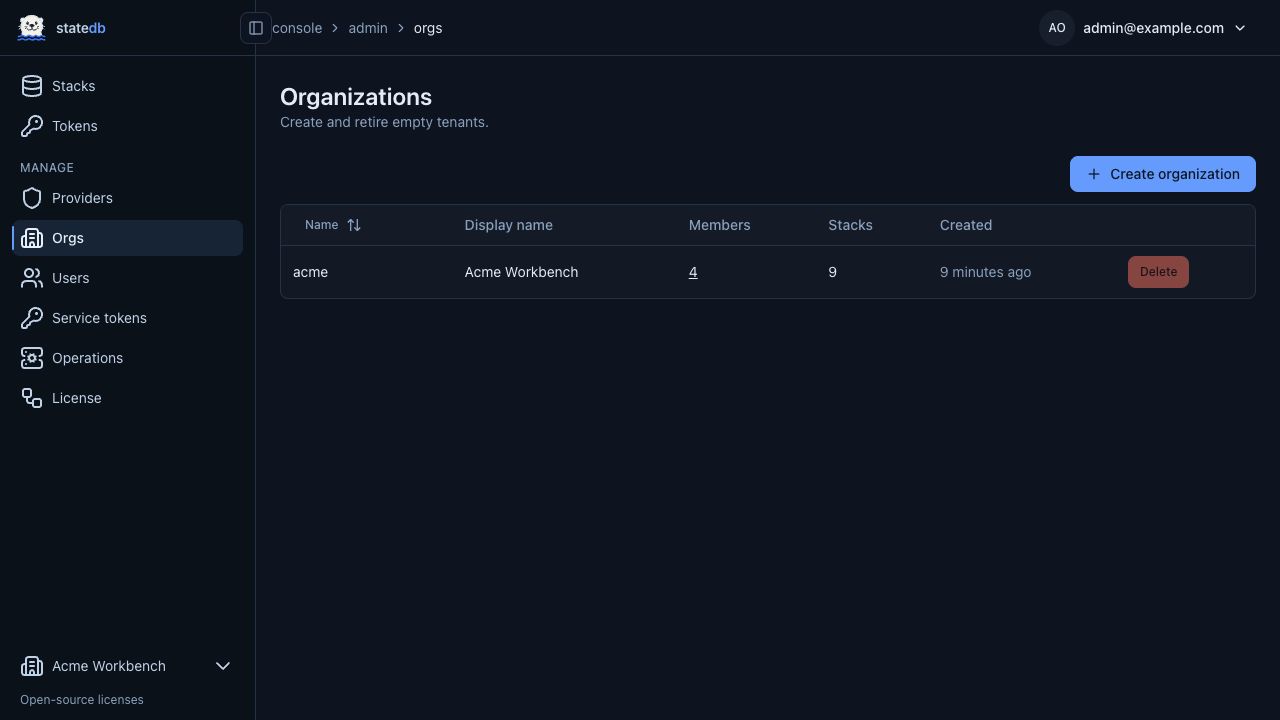
Selecting the member count opens role management for that organization. statedb does not let you remove the last owner, and an organization can only be deleted once all its stacks are gone.
Removing someone from an organization is how you revoke their access; their tokens stop working for that organization on the next request.
Identity providers
Section titled “Identity providers”Manage → Providers is where OpenID Connect providers are configured. Each row shows the issuer, client ID, callback URL, and status.
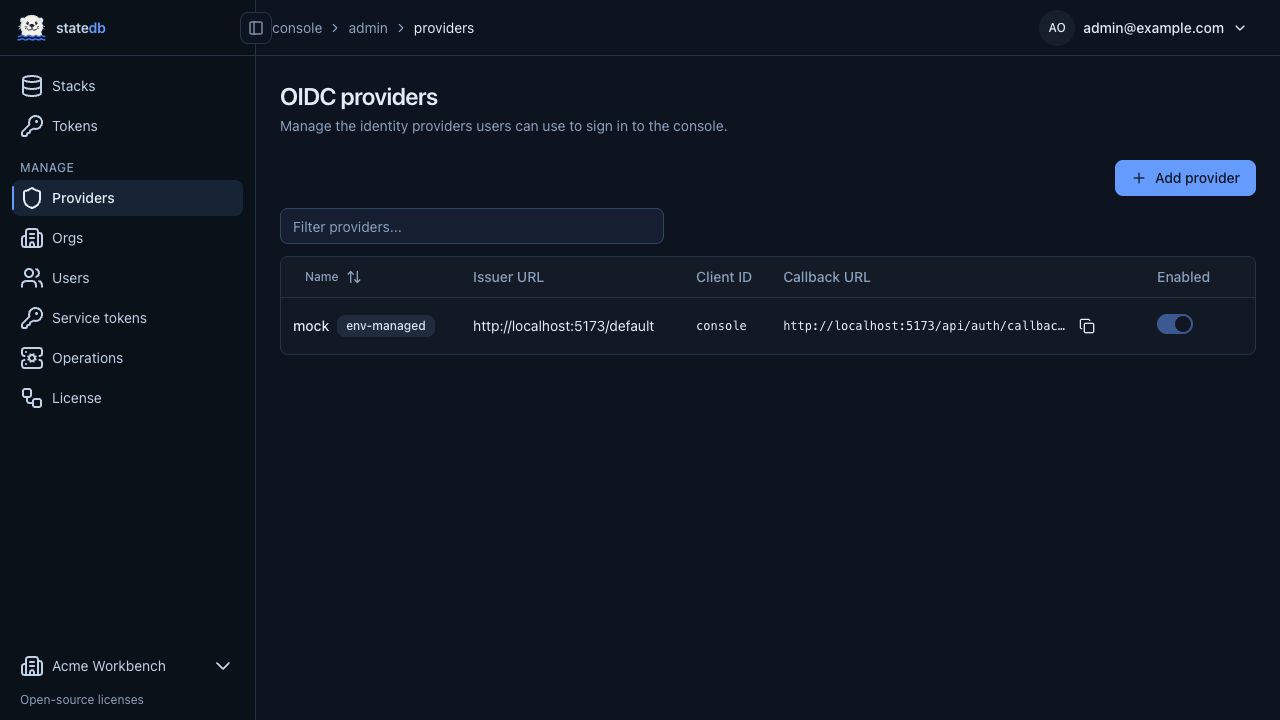
Register the callback URL with your identity provider first, then add the issuer
URL, client ID, client secret, and scopes here. Scopes must include openid.
A provider seeded from environment variables appears read-only, because its values are re-applied from the environment at every service start.
Manage → Users finds a user and shows their organization memberships.
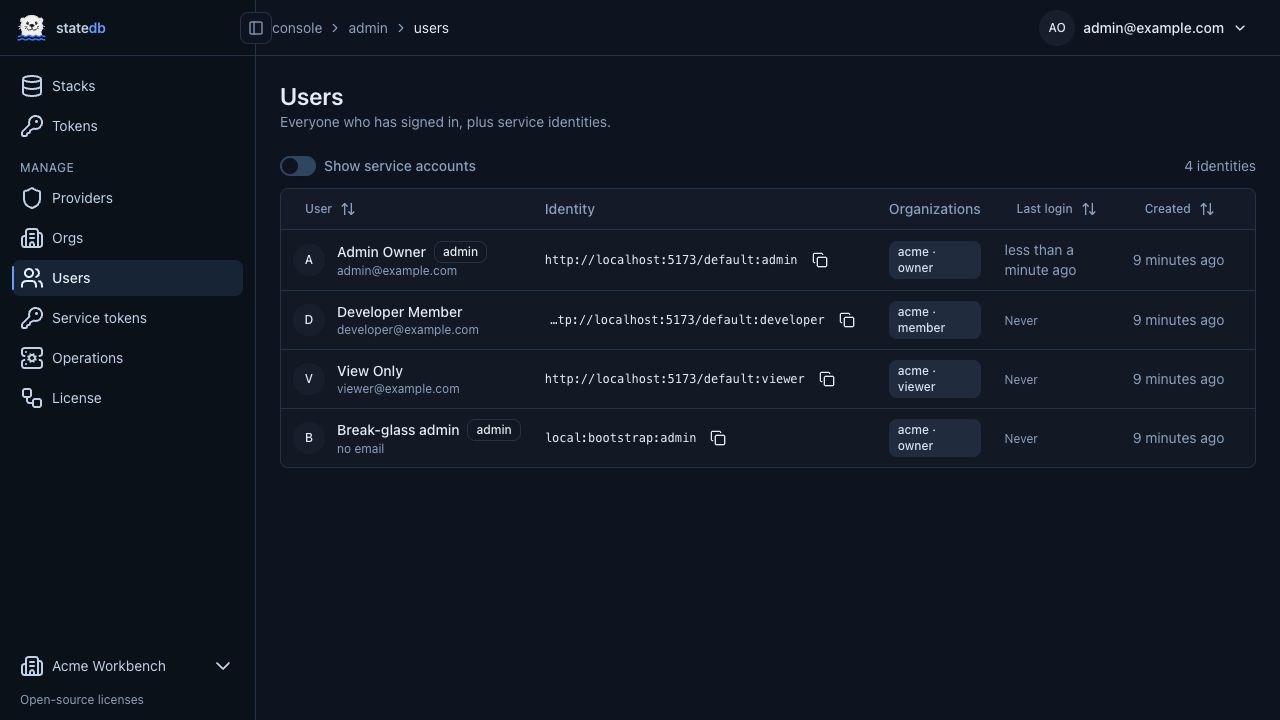
Access follows from those memberships, so this page is where you check why
someone can or cannot see a stack. Site administrators are the exception: that
status comes from the STATEDB_ADMIN_SUBJECTS allow-list, not from anything
editable here.
Service tokens
Section titled “Service tokens”Manage → Service tokens creates credentials for CI. Each service account is created with one token, valid for 30, 90, or 365 days.
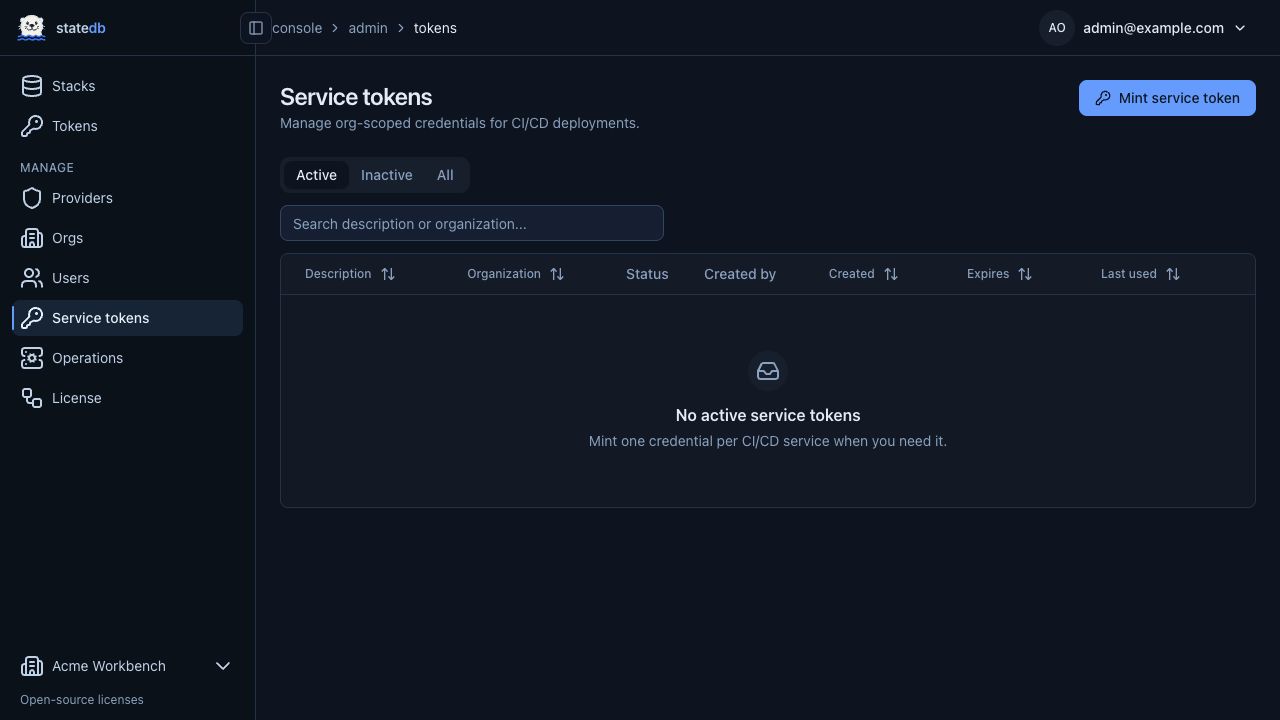
The token is displayed once and never again, so copy it straight into your CI
system’s secret store and set it as PULUMI_ACCESS_TOKEN there. The list marks
tokens approaching expiry.
Create one account per automation service per organization. Because an account carries a single token, rotation means creating a replacement, cutting the pipeline over, and revoking the old one.
Locks and compaction
Section titled “Locks and compaction”Manage → Operations shows live update leases and compaction jobs, refreshing every five seconds.
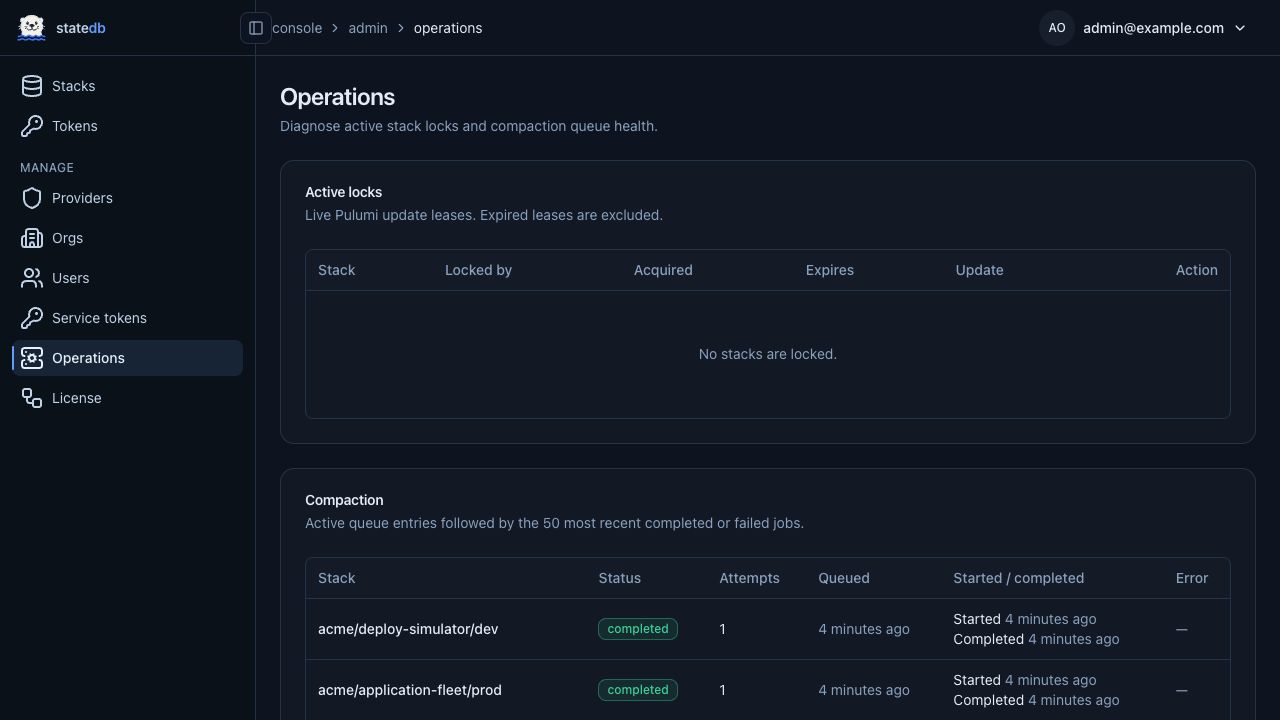
An active lock names the stack, the holder, the update, and when the lease expires. Leases expire on their own five minutes after their last renewal, so an interrupted run normally clears itself and force-unlock is for the cases where you cannot wait.
Compaction folds journal entries into a new snapshot in the background. The table lists pending, active, completed, and failed jobs; a failed job shows its last error and retry count. Compaction does not block the CLI, so queued jobs are no reason to delay an update.
Personal CLI tokens
Section titled “Personal CLI tokens”Tokens creates a personal CLI token for your own use. It lasts 24 hours and carries your access, which suits a laptop but not a pipeline. Use a service account for anything unattended.
The page gives you the three commands to run:
export PULUMI_ACCESS_TOKEN=<your-token>pulumi login https://statedb.example.com/pulumiexport PULUMI_CONSOLE_DOMAIN=statedb.example.comThat last variable is optional. Setting it lets the CLI print links back into the console after previews and updates.